Leads
Leads is the operation where you can start and track communication with new or already existing customers about potentional collaboration.
How to create a Lead
There are two ways you can create a Lead.
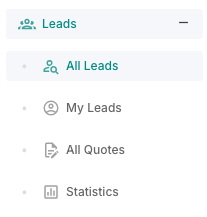
First Way
Path: Log in -> Dashboard -> Leads -> All Leads -> Create Lead

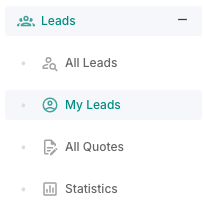
Second Way
Path: Log in -> Dashboard -> Leads -> My Leads
Whichever way you go with only the two first steps differ.
- From the Dashboard, click on the Leads tab and then select All Leads, or
- From the Dashboard, click Leads tab and then select My Leads.
- Once the All Leads Tab opens up, click on the Create Lead button on the top-right corner or
- Once the My Leads tab opens, click on the Create Lead button on the top-right corner.
- A form will appear where you can:
- Select the customer, existing or new.
- Select the Lead Title, for example Annual Contract.
- Select the estimated value.
- Select the lead source, for example website, social media.
- Select the Lead stage, for example new, contacted, qualified, quoted, negotiation, won, lost.
- Select the percentage of the closing probability
- Add a description
- Select the services Fill in all the required details and click on Next.
- A new form will appear where you can:
- Assign the lead to yoursefl or other admins.
- Enter the possible service date that will be the product of the lead.
- Enter the activity date for the current phase of the lead.
- Click on Create Lead.