Log Activity
With log activity, you can log and save the different phases of the lead.
How to Log an Activity
If a Lead is assigned to you, there are two ways you can log an Activity.
First Way
Path: Log in -> Dashboard -> Leads -> All Leads -> Log Activity
Second Way
Path: Log in -> Dashboard -> Leads -> My Leads -> Log Activity
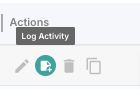
Whichever way you go with only the two steps differ.
- Once you have created a lead, from the Dashboard, click on the Leads tab and then select All Leads, or
- from the Dashboard, click Leads tab and then select My Leads.
- Once the All Leads Tab opens up, locate the desired lead and scroll to the right. There, under the Actions column, hover over the second button from the left -- it will say Log Activity or
- Once the My Leads tab opens, locate the desired lead and scroll to the right. There, under the Actions column, hover over the second button from the left -- it will say Log Activity .
- Click it and a window will pop up. You can select the type of Activity you want to log:
- Phone Call, where you can enter a subject, a description, the next scheduled date for future activities or follow-ups and, by clicking on the Outcome & Next Steps title, you can record the outcome and any action items from this activity.
- Email, where you can enter the recipients, the subject and body of the email, the next scheduled date for future activities or follow-ups and, by clicking on the Outcome & Next Steps title, you can record the outcome and any action items from this activity.
- Meeting/ Site VIsit, where you can enter a subject, a description, the next scheduled date for future activities or follow-ups and, by clicking on the Outcome & Next Steps title, you can record the outcome and any action items from this activity.
You have sucessfully entered an activity log.