Device Installation on Floor Plan
How to Install a Device on a customer's location Floor Plan
Path: Log in -> Dashboard -> Customers -> Select Customer row -> Overview -> Locations Tab -> Floor Plans -> Update Location Floor Plans -> Add device to floor plan
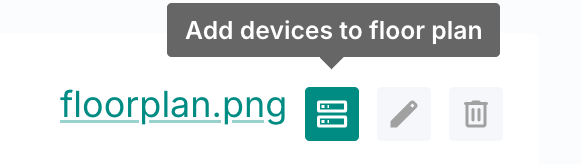
- Once you are on the Floor Plans section, if you need a reminder click here, locate the floor plan you desire.
- Hover over the first button from the left -- it will display "Add device to floor plan".
- Click this button to open the Devices page for that floor plan.
- Here, you'll see :
- The floor plan layout.
- An action bar.
- A form to create new devices.
- Α table listing all installed devices.
- To add devices:
- Fill out the form below the floor plan to create new devices.
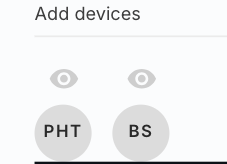
- Newly created devices will appear as circles with their device type short code above the floor plan( see second image above).
- Drag and drop these circles onto the floor plan to place them to their actual location.
- To remove a device from the floor plan, simply click on the device and press the trash icon that appears in the pop up window.
- To remove a device completely from the customer's account, delete from the customer's Device Table section below the floor plan.