Contracts
How to Create Contracts
Path: Log in -> Dashboard -> Customers -> Select Customer row -> Overview -> Locations Tab -> Add Contract
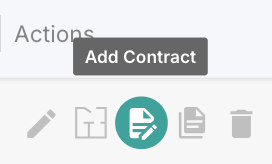
- Once you are on the Locations Table of a customer, if you need a reminder click here, you can create contracts for each location. These contracts can be later linked with scheduled visits/appointments.
- In the Locations Table, find the row for the desired location.
- On the far-right, under the Actions column, hover over the third button from the left -- it will display Add Contract.
- Click this button to open the Contract Dialog for the location.
- Fill in the form to create a new contract. You can view contracts either on the Contracts section from the sidebar, or from the specific location row by clicking the forth action button (View Contract)