Visit Report View
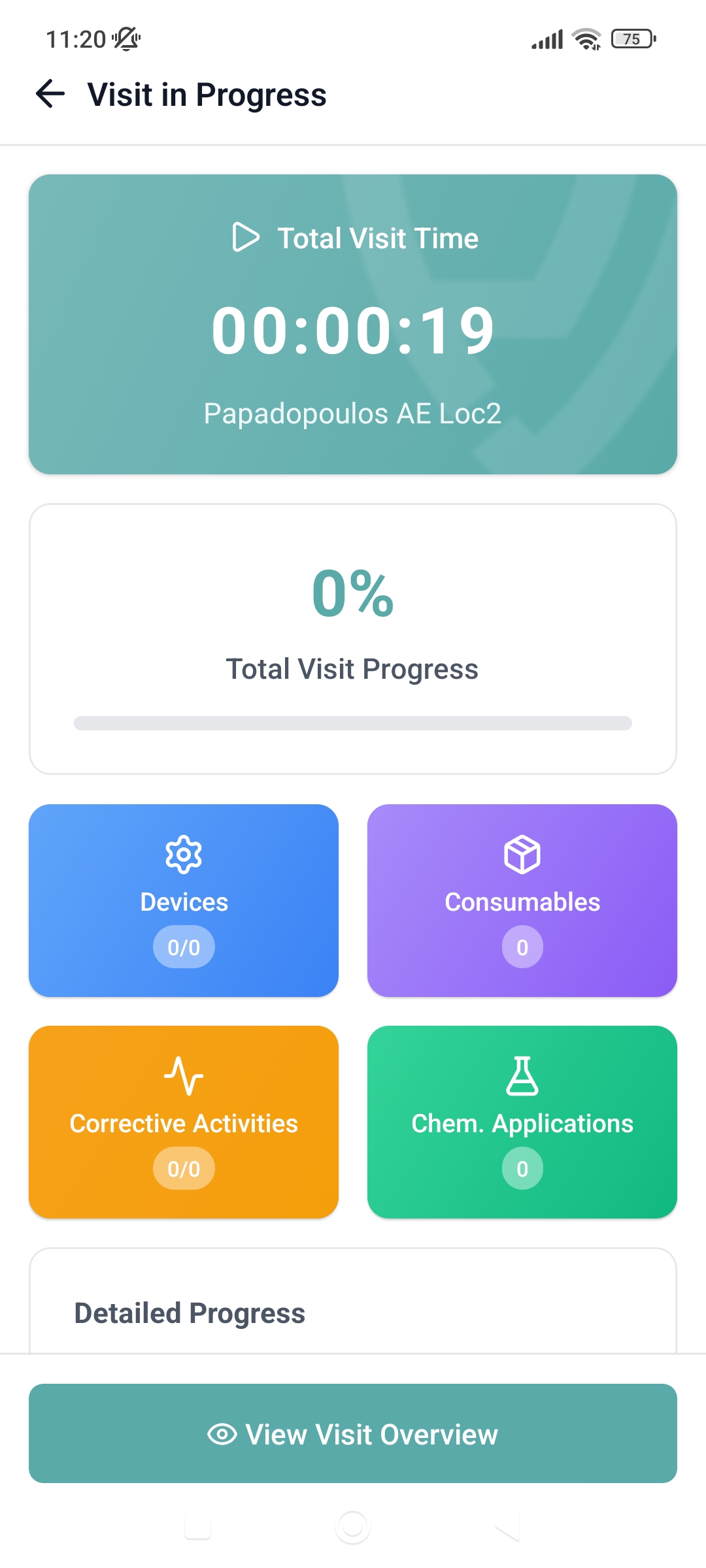
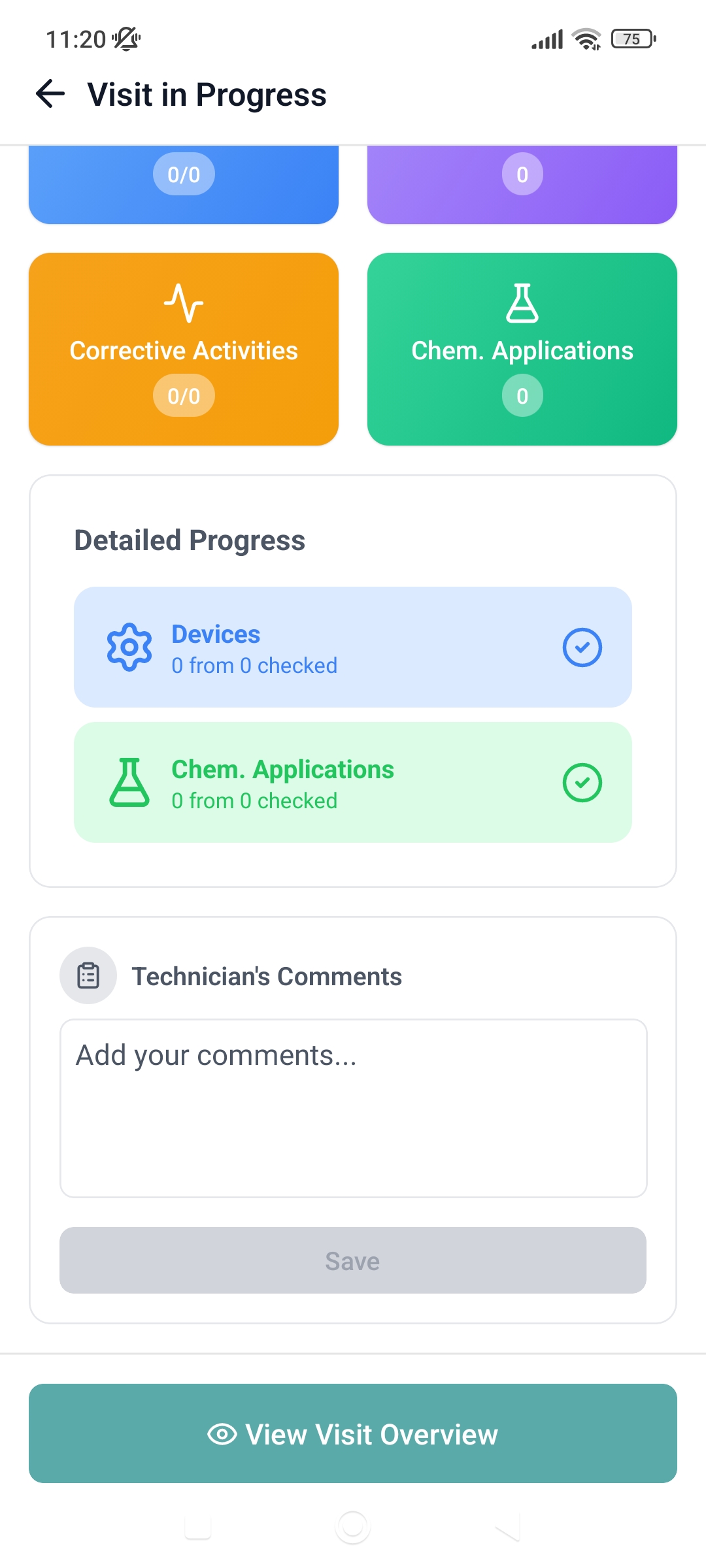
This is the main screen for recording and managing visits within the application. The screen includes a timer for recording the duration of the visit, the percentage of completion of the visit, and buttons for navigating to specific screens for recording tasks for the visit, which are as follows:
- Devices button,
- Consumables button,
- Corrective activities button,
- Chemical applications button.
It includes completion rates for each type of action, for example devices, chemical applications, and so on.
Devices Button
Once the Technicial clicks on the Devices button, they will be redirected to the Devices screen. There, they will see two tabs:
List Tab
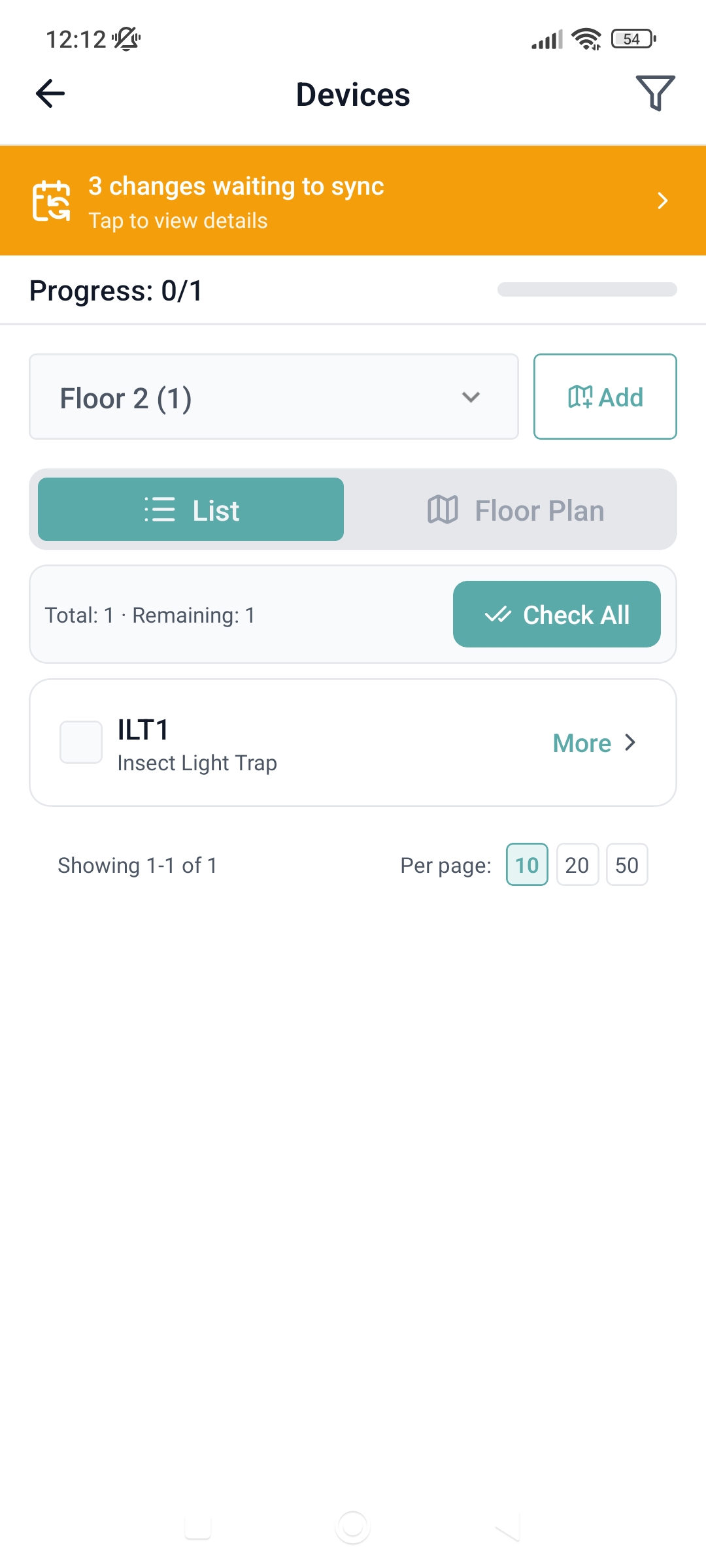
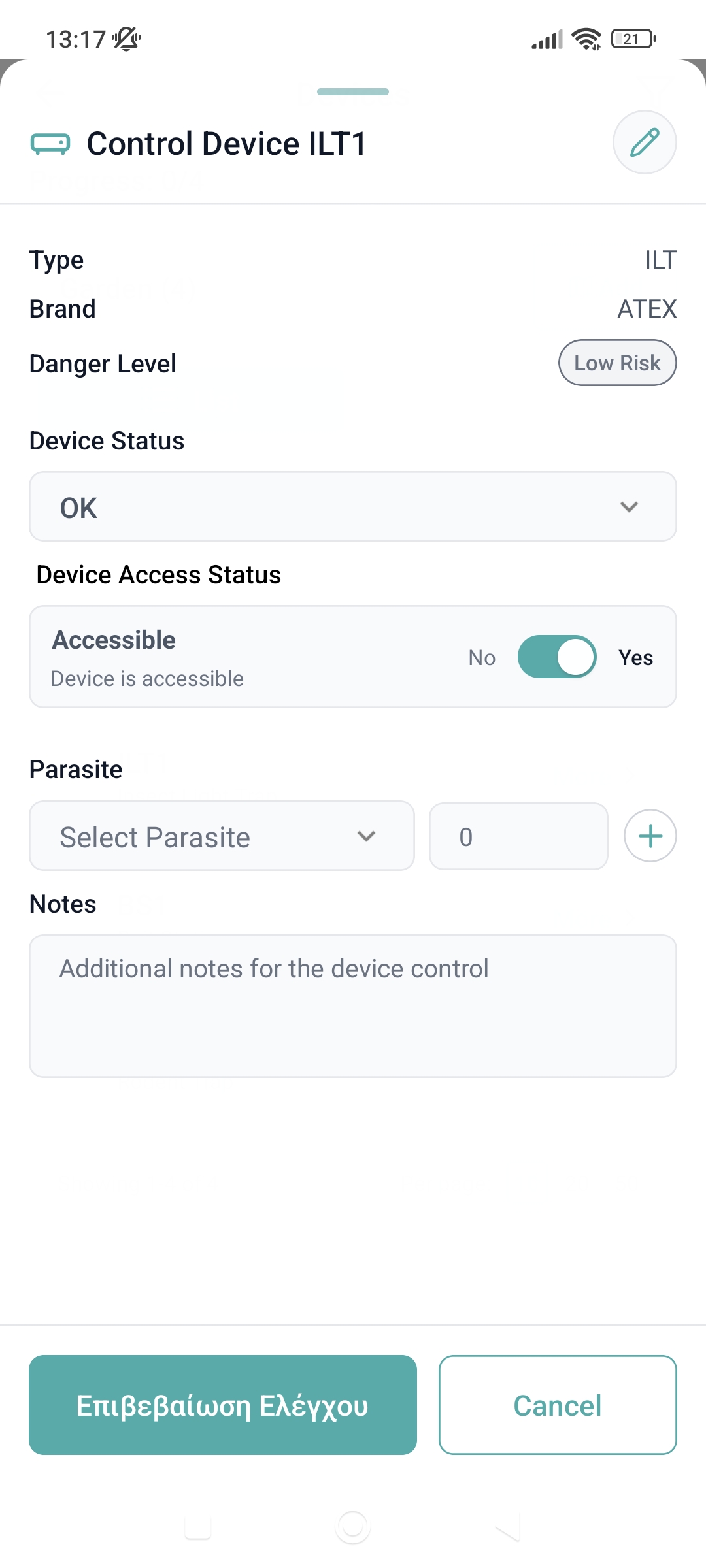
By clicking on More on the desired device, they will be redirected to the Control Device screen where the can:
- View the Type, Brand and Danger Level of the device,
- Change the Device Status,
- Change the Device Access Status,
- And depending on the type of device, more details will appear, for example for a bait station the percetage of bait consumption , the chemical used and the dosage
Finally, the Technician can add notes for the device control. By clicking on the Verify Control button, the task is completed and they will be ridirected back to the tab.
Floor Plan Tab
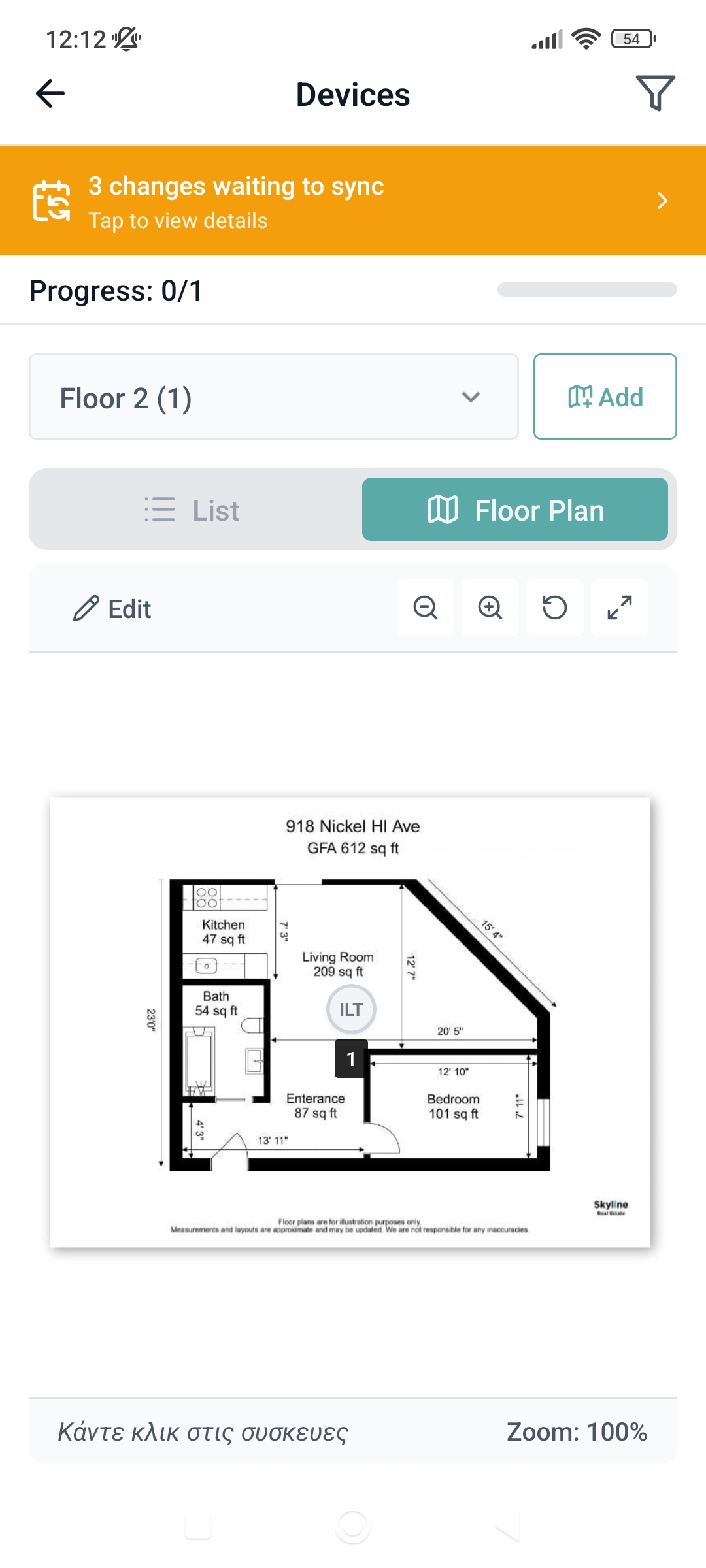
In this tab, the Technician can :
- Upload new floor plan by clicking the Add button at the top of the screen,
- Navigate to all availiable floor plans in this location via the dropdown menu at the top of the screen, to the left of the Add button,
- By clicking on the Edit button at the navigation bar under the tabs, the Technician can add, move a device. To finalize the action, simply press the Done Edititng button.
Consumables Button
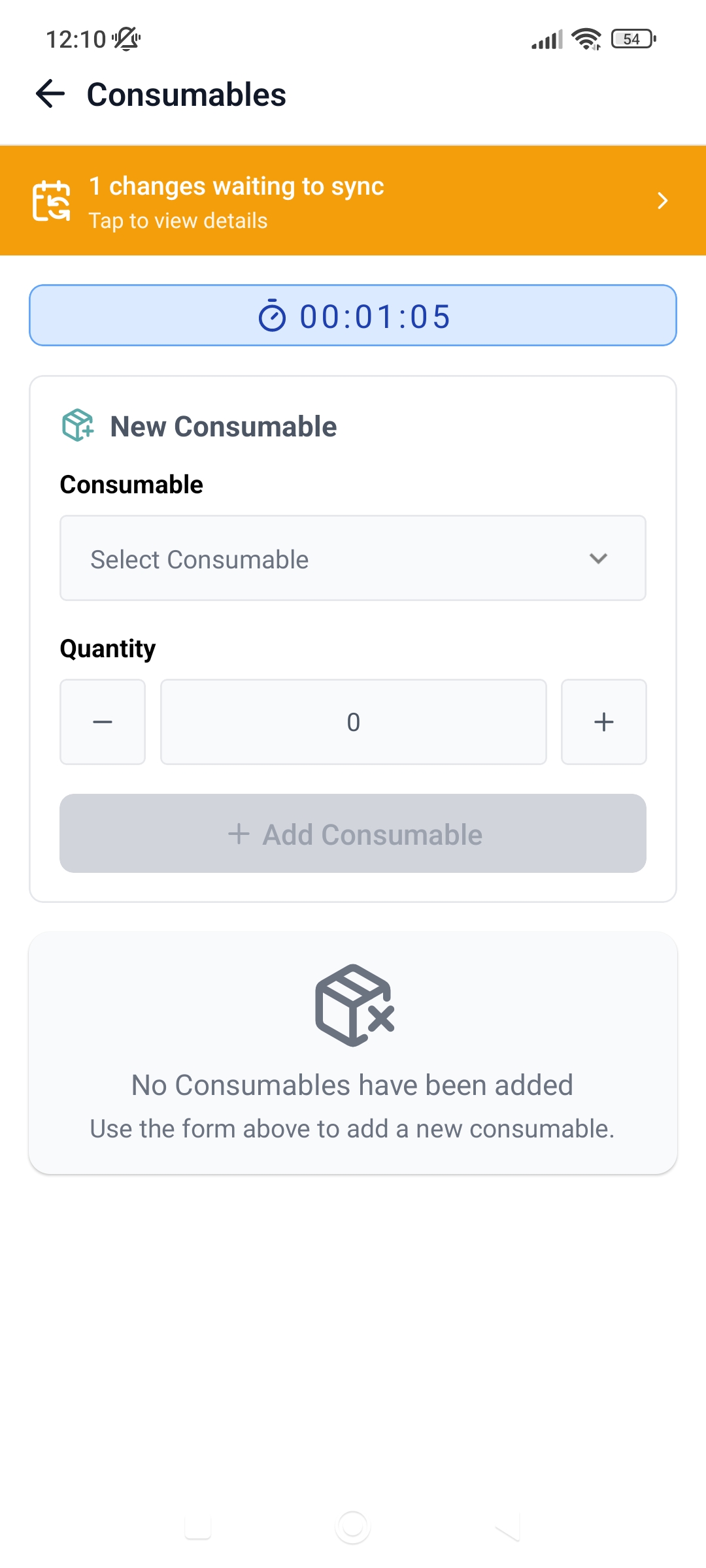
Once the Technician clicks on the Consumables button, they will be redirected to the Consumables screen. There they can:
- Select a consumable from the dropdown menu of the available consumables, select the quantity of the consumable and Add Consumable,
- View and delete the consumables used in this visit.
Corrective Activities Button
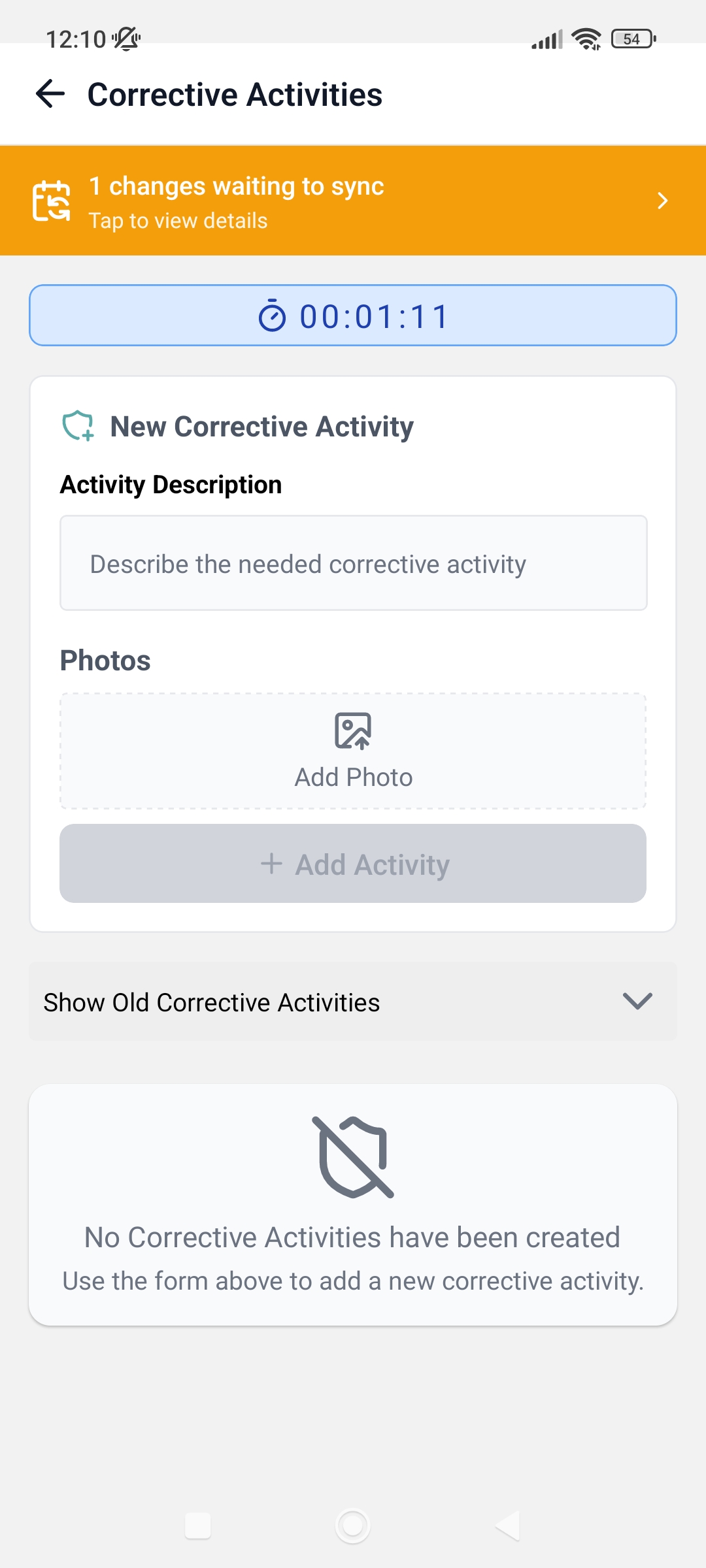
Once the Technician clicks on the Corrective Activities. button, they will be redirected to the Corrective Activities screen where they can:
- Add a new Corrective Activity by filling in the activity description, with the possibility of adding a photo, in the form,
- View the current, open, corrective activities, delete them or Mark as Completed when needed,
- And view Old Corrective Activities by opening the dropdown menu at the bottom of the screen.
Chemical Applications Button
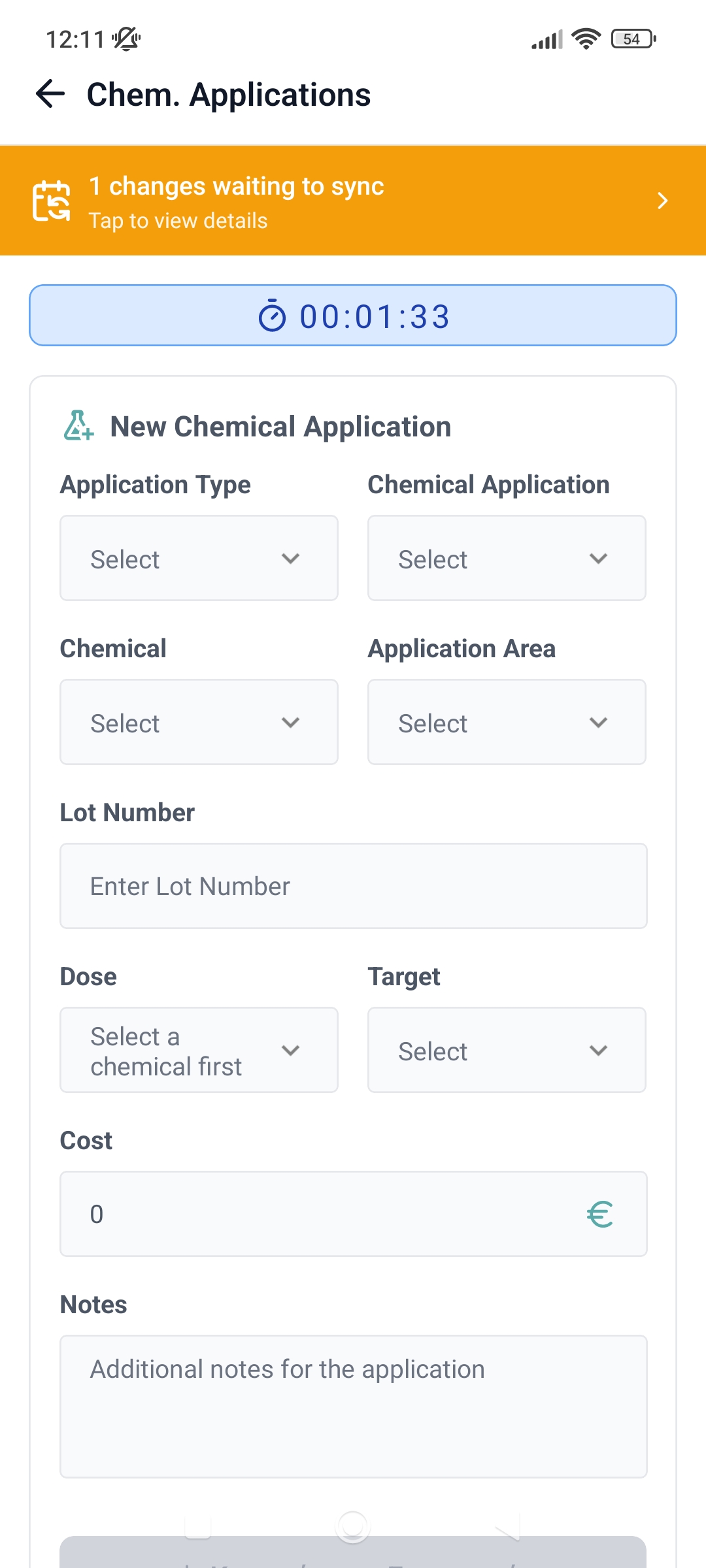
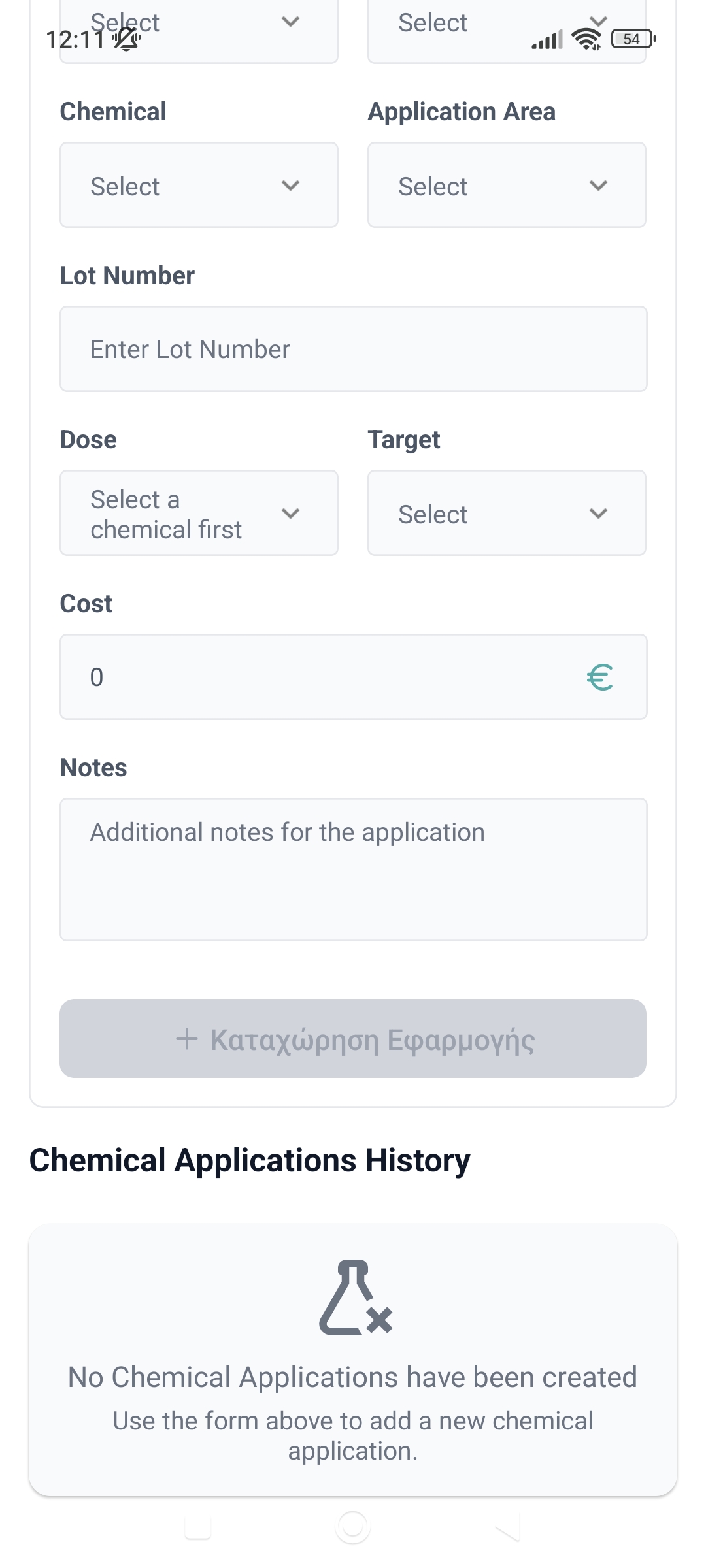
Once the Technician clicks on the Chemical Applications. button, they will be redirected to the Chemical Applications screen where they can:
- Add a New Chemical Apllication from the list of the available Chemicals by filling in all the details needed in th form, add additional notes for the application and clicking on the Enter Application,
- View the Chemical Applications History.
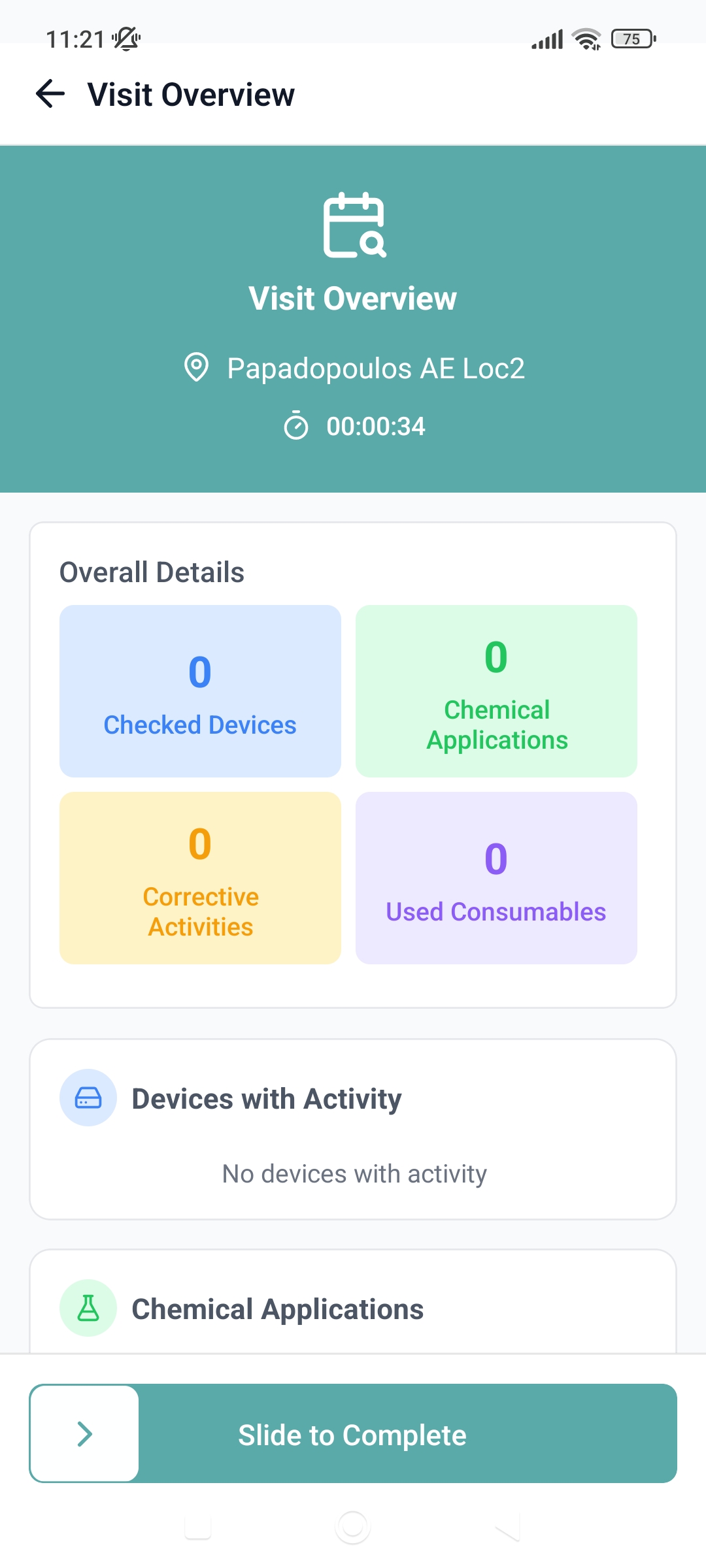
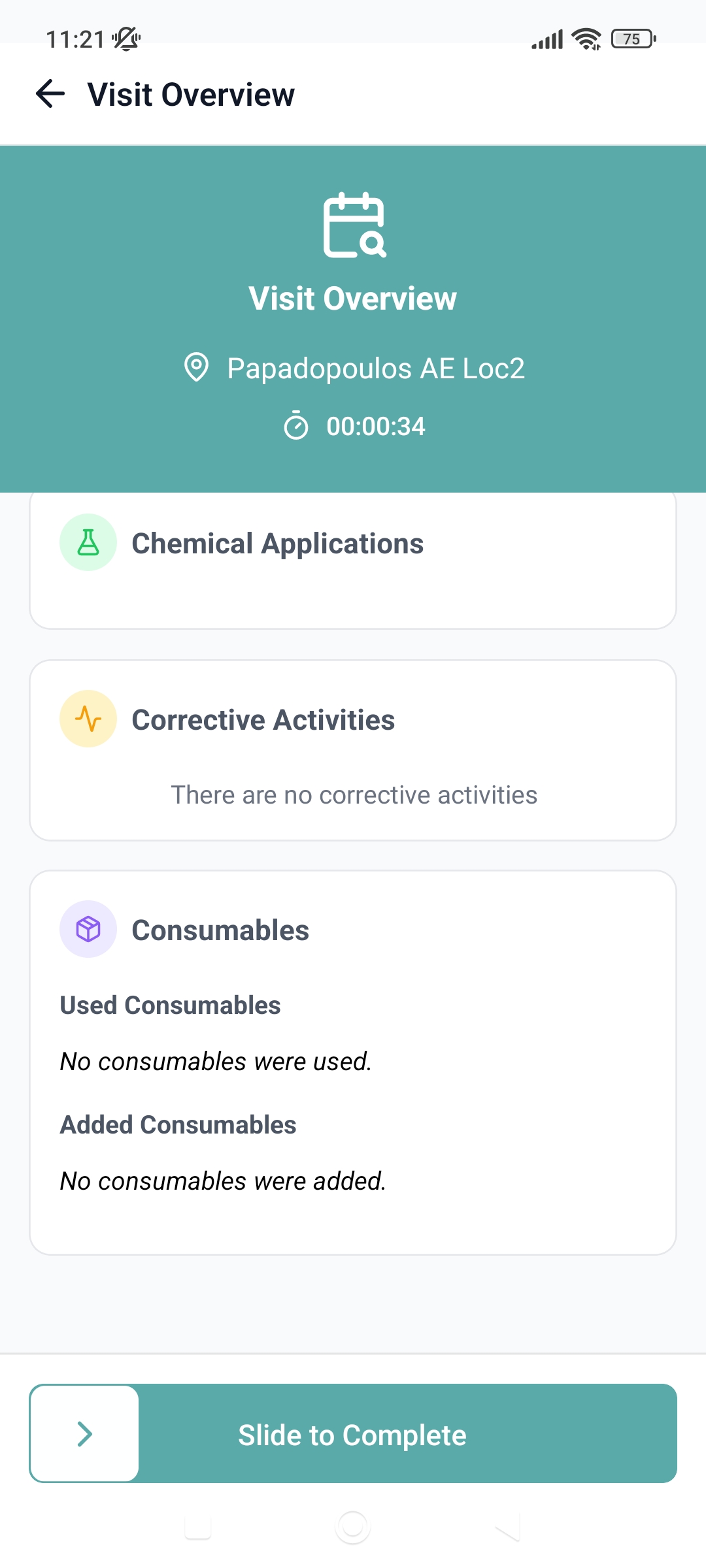
Finally, to complete a visit, press the button at the bottom of the page, it will say View Visit Overview. The Technician will be redirected to the Visit Overview screen, where there will be a summary of all the tasks done at the current visit. To complete the visit, simply look at the bottom of the screen and Slide to Complete